Manage Your Team
How to invite & mange your team members
Every account has a possibility to invite additional team members to collaborate and manage their links, access analytics, and perform other actions. You can add new members only if you have "Admin" or "Primary Owner" role in your team.
Adding new Team Members
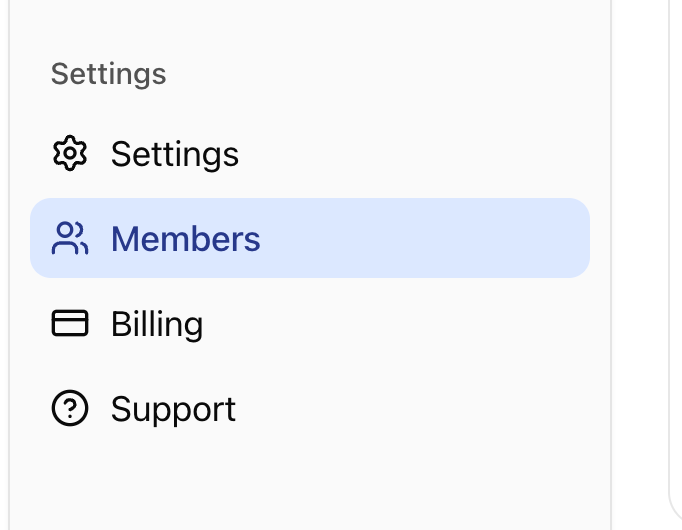
- Open "Members" section from left navigation menu
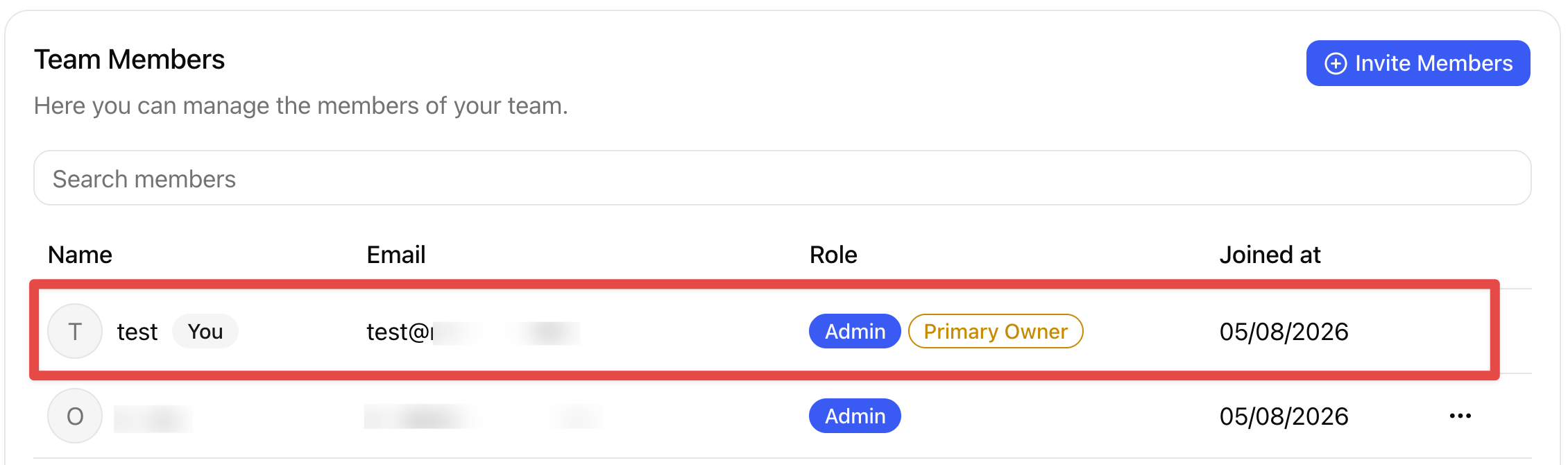
- Make sure you have Admin or Primary Owner role
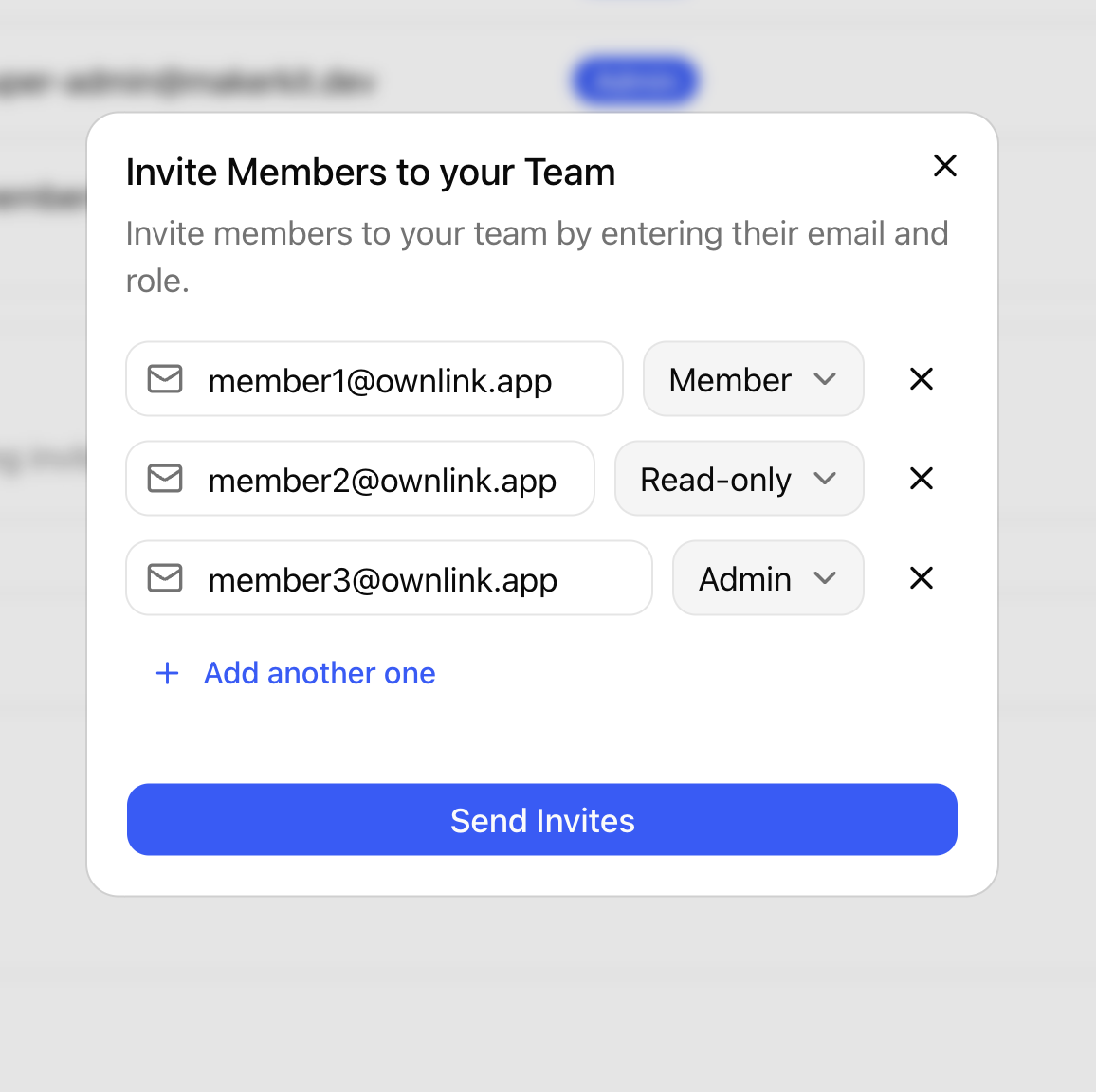
Click "Invite Members" button and enter all team member emails and access levels. Then click "Send Invites".
You can currently pick between "Admin" (full access, including invitation), "Member" (edit access), and "Read-only" for analytics without edit rights.
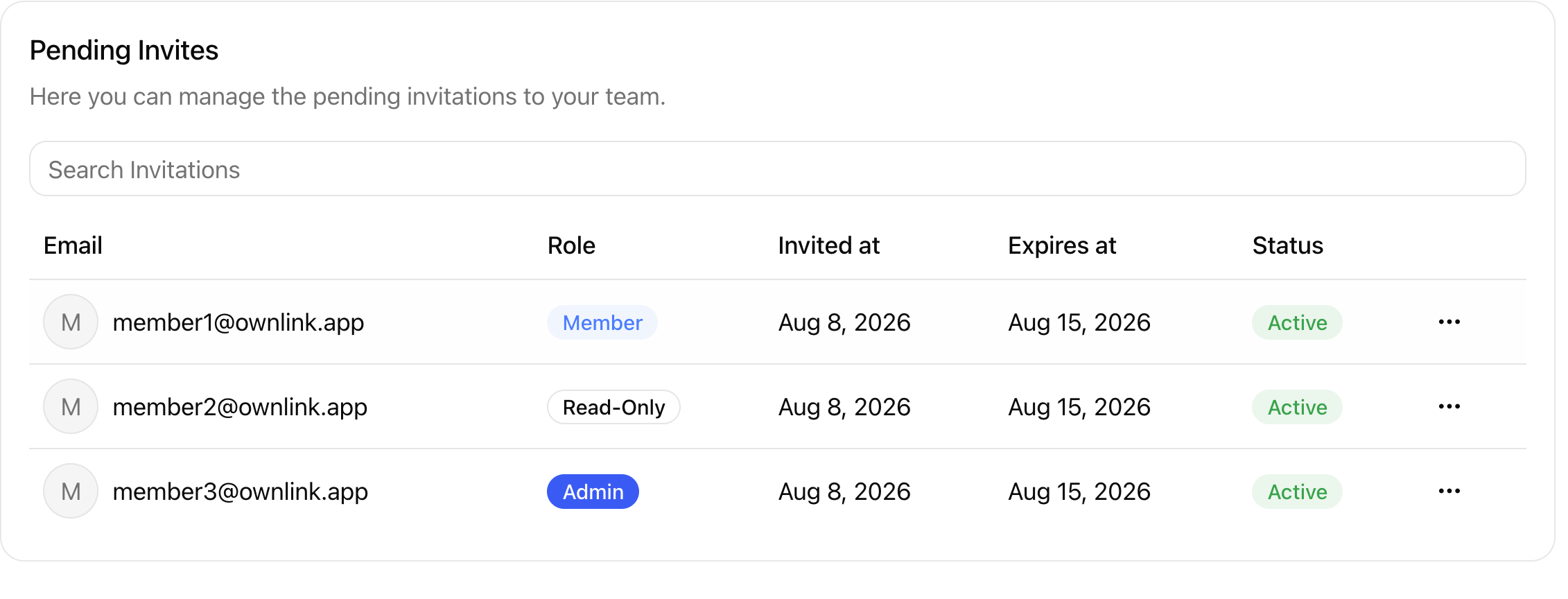
Your members will be shown under "Pending Invites" until they accept invitation sent via email.
Updating team member role
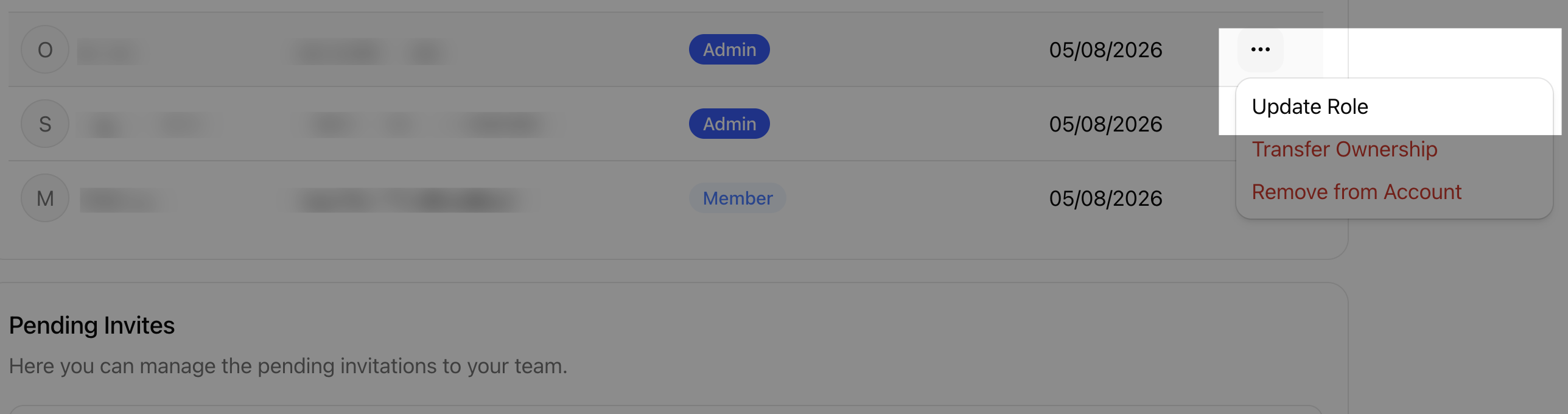
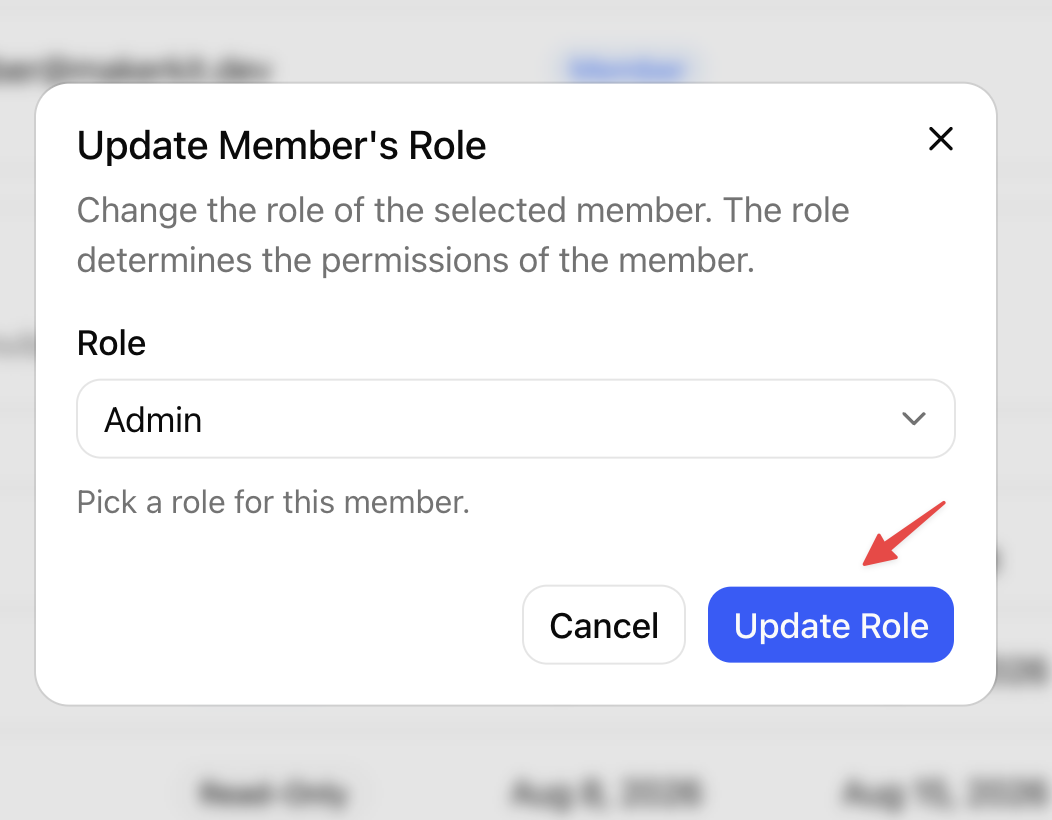
You can change member role any time by selecting "Update Role" from context menu and then changing role in the dialog window.
Removing team members
You can remove team members by clicking on context menu → "Remove from Account"
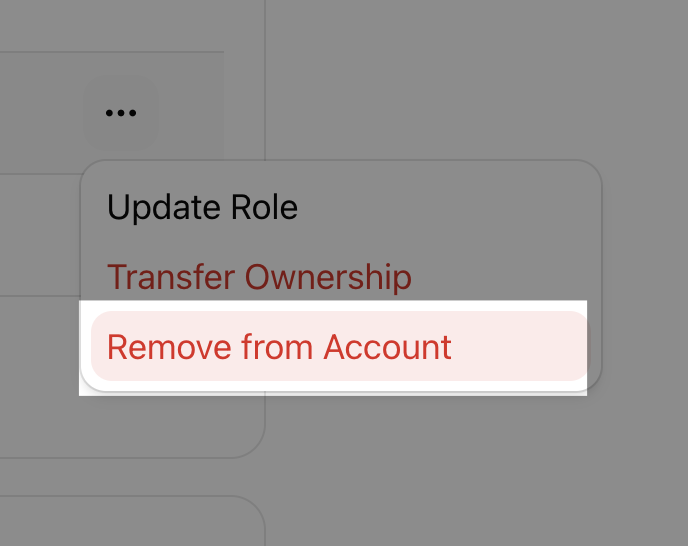
Confirm your choice from popup dialog and user will be instantly removed from your team.
Changing Primary Owner
Warning - this change is irriversible! Once you change primary Owner, they will own your account, including billing settings, etc.
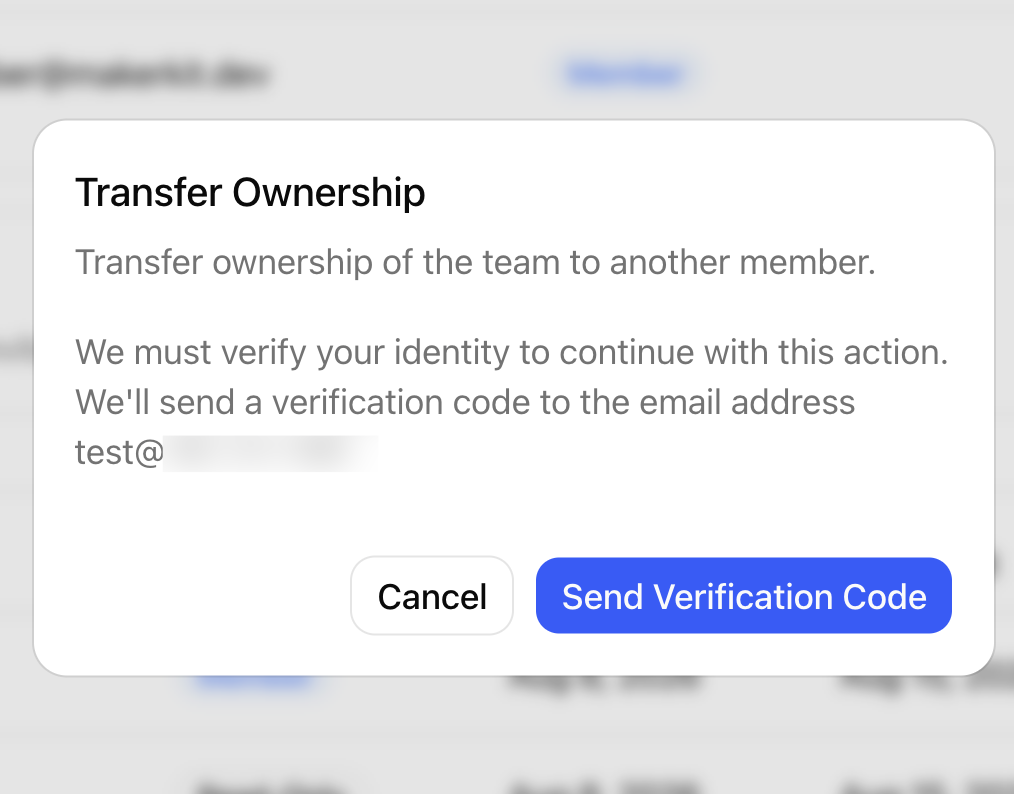
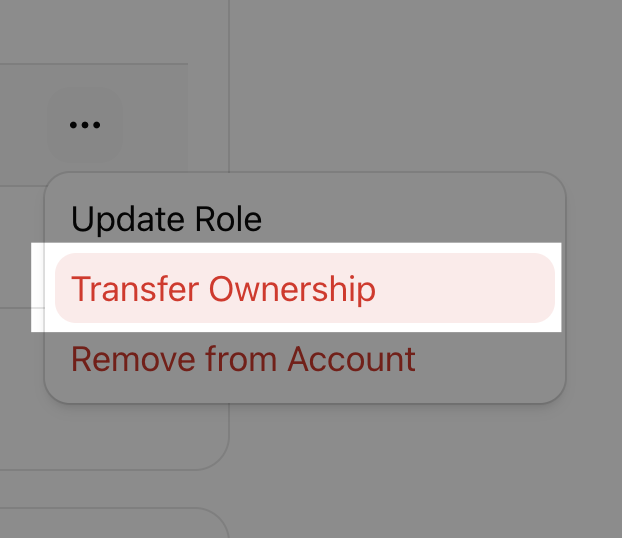
To transfer team ownership to another user account, click "Transfer Ownership" fron team member context menu.
You will be promted to verify your ownership, before change will take into effect.