
Create a short link
Before you can add a short link on your own domain - make sure domain is created and verified.
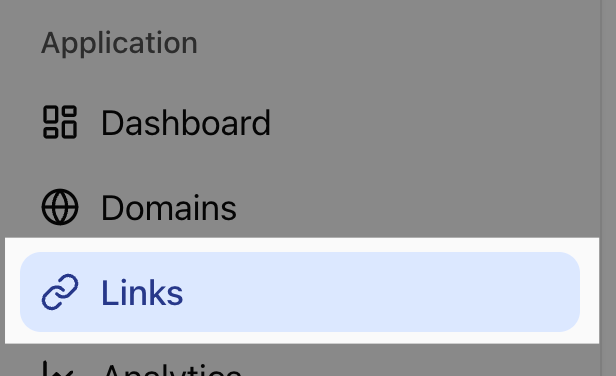
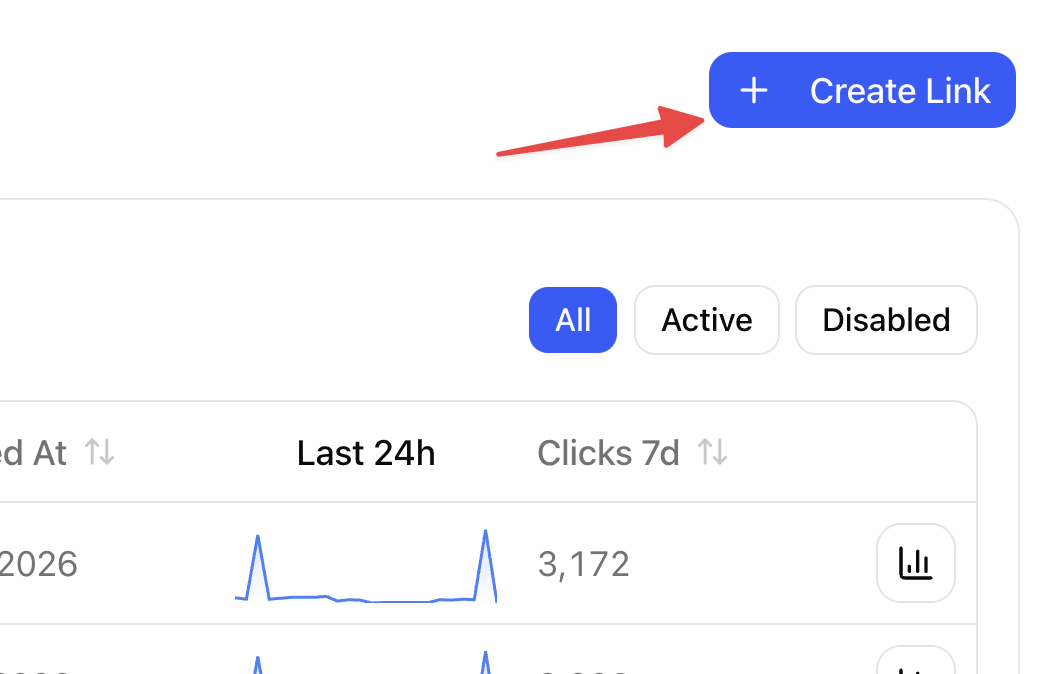
To add a short link you need to open "Links" section from the left navigation menu and Click "Create Link"
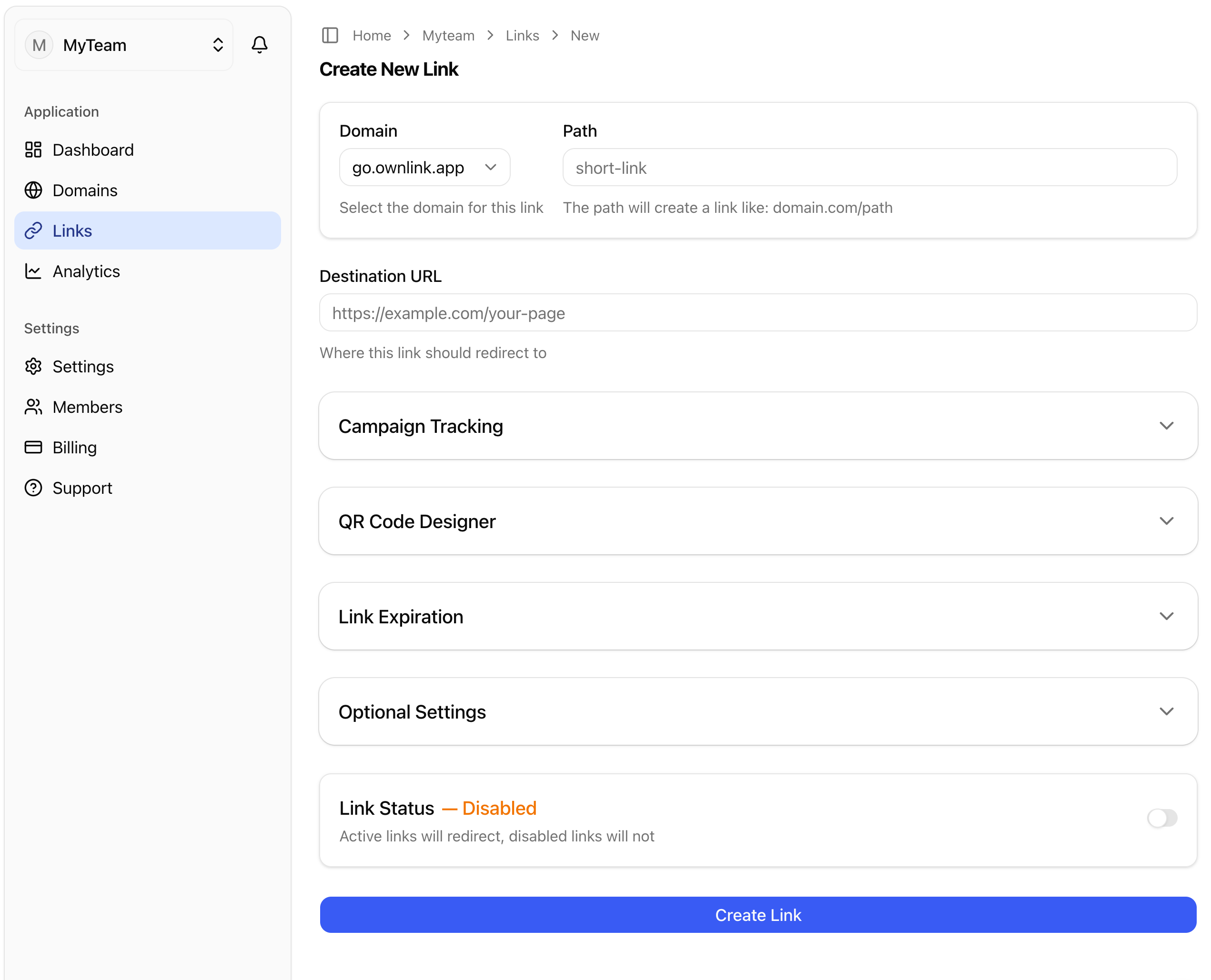
On the link setup page you will be able to select verified domains that are ready to route traffic ( make sure you have already added a domain to be used ), short link path, destination URL and a handful of additional settings.
Main settings
- Domain - this is the domain that will be used for short links that you share with your audience. E.g. "go.ownlink.app"
- Path - the path to use for this link on selected domain. E.g. "trial". Full URL example would be - "go.ownlink.app/trial"
- Destination URL - where you want to lead visitors after clicking or scanning your short url. E.g. "https://ownlink.app/blog/start-free-trial". After clicking your short link, visitor will land on provided page.
Then you have multiple optional setting sections, where you can configure Campaign tracking, Design QR code, Set up Link expiration, etc.
- Link Status - When enabled, will instantly redirect anyone from your short link to the full URL.
Campaign Tracking
You have an option to add additional campaign tracking parameters (e.g. UTM) to your final destination URL, which would be useful if you have multiple links that should have same tracking parameters. Instead of adding them manually, you can create a template that can be reused across any destination URL.
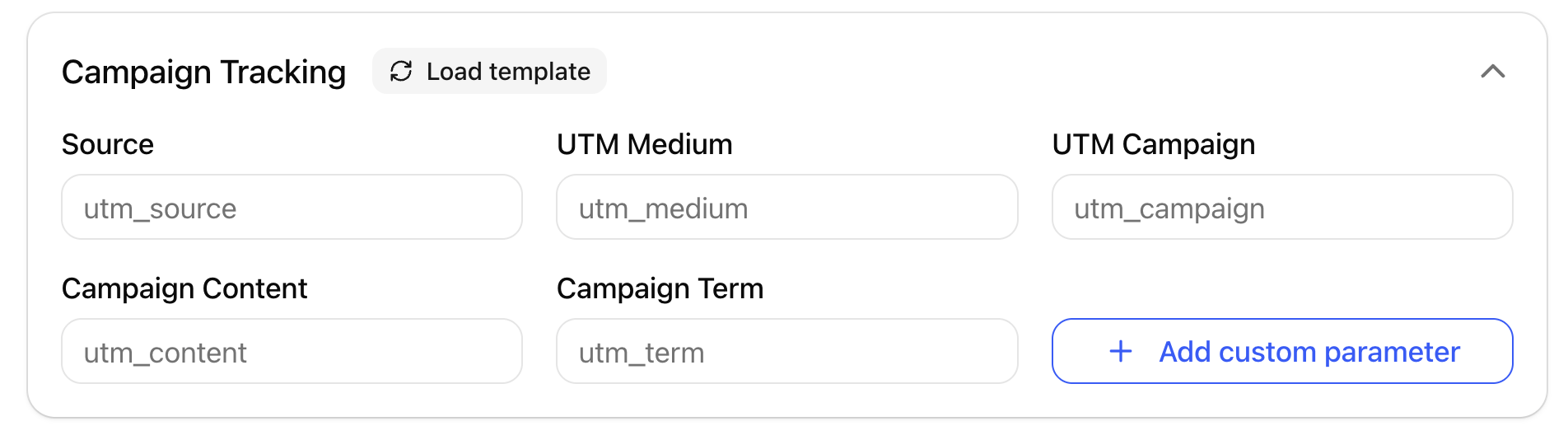
- You can add default utm_source, utm_medium, utm_campaign, utm_content and utm_term parameters
- "Add custom parameter" allows adding custom values.
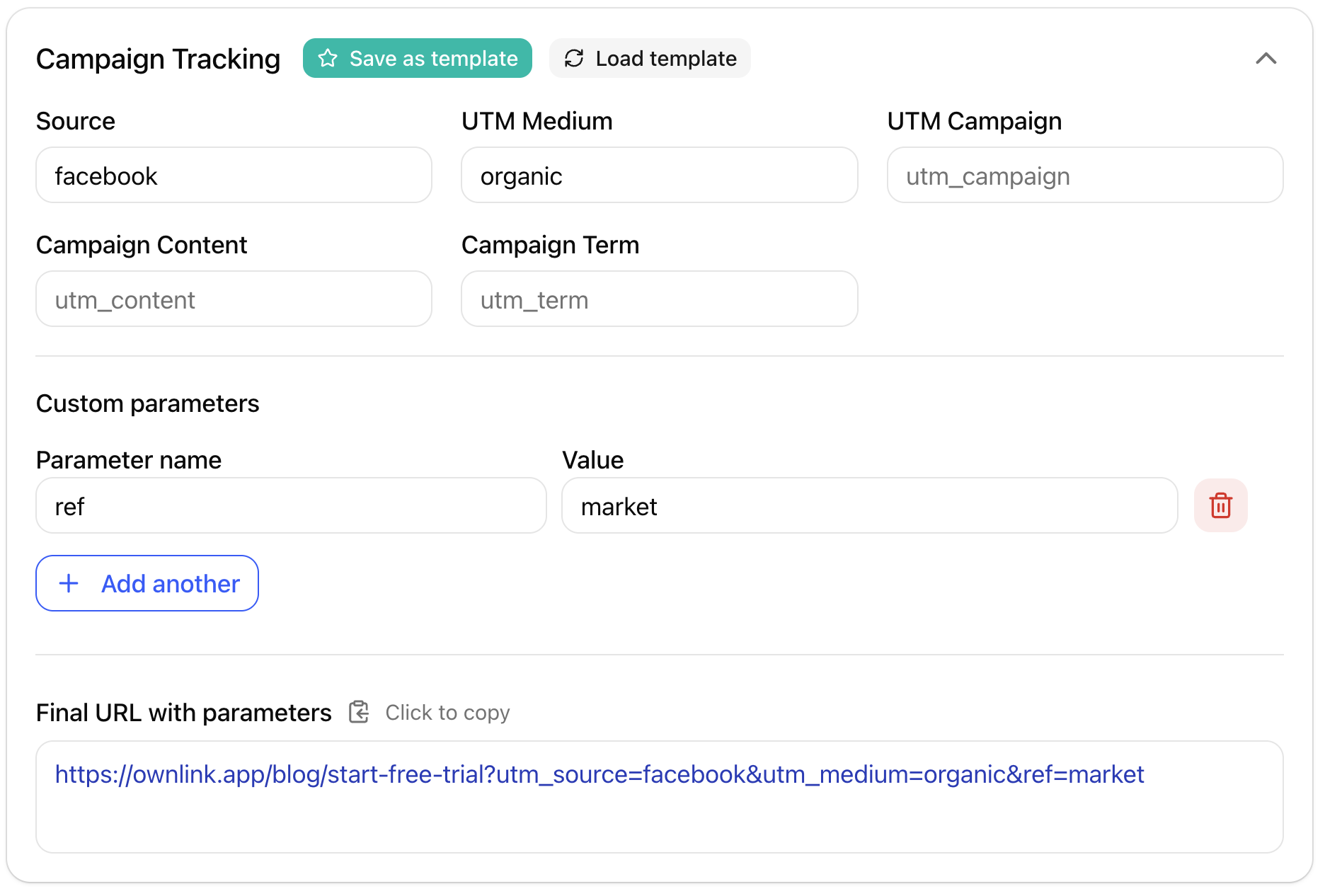
When you add any of the values manually - form will show a final URL preview and show an option to "Save as a template". When selected - you can save these parameters for later use.
Campaign Tracking templates
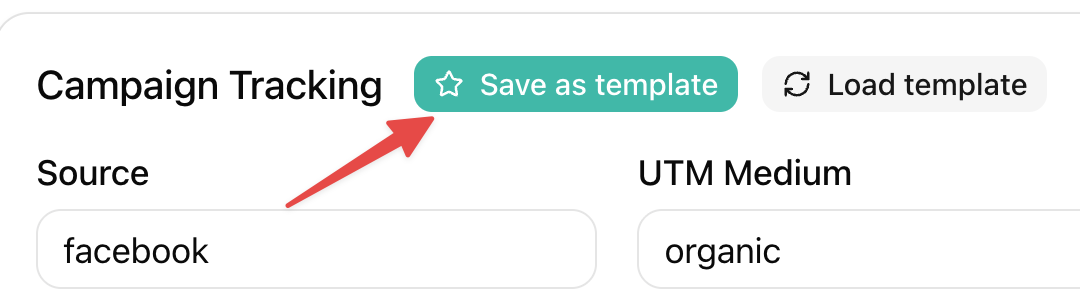
Click on "Save as template" to save parameters.
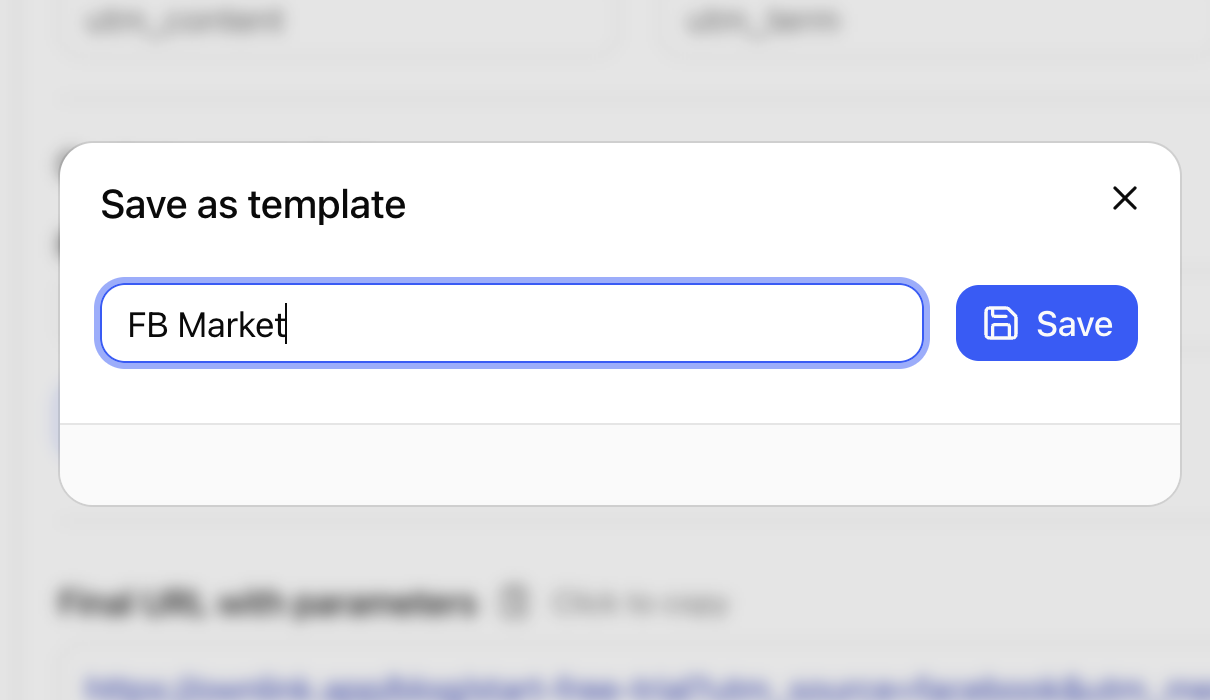
Enter a name for your template and click "Save"
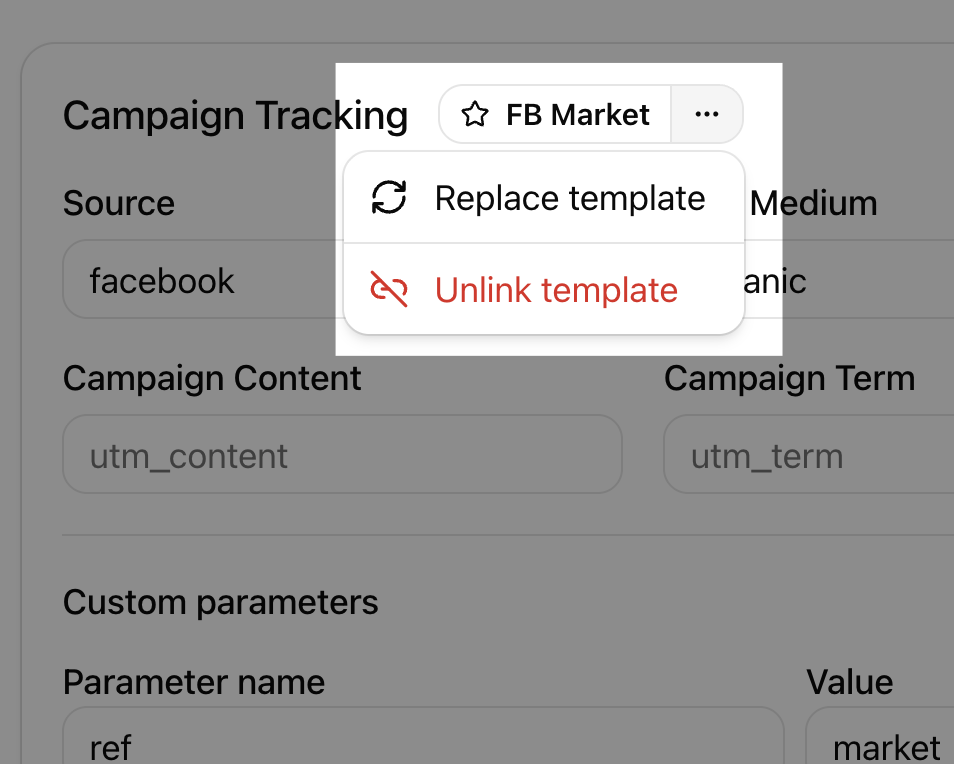
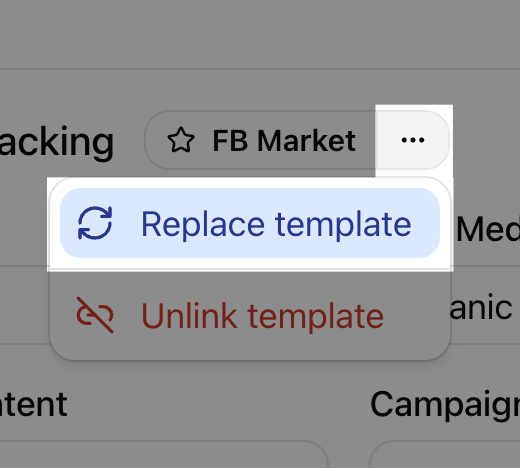
You will now see template name label, indicating that this link uses pre-defined template. By clicking on the contextual menu you can replace the template (pick another) or unlink it if you want to customize tracking parameters.
Editing Campaign templates
If you alter or add any campaign tracking parameters - the system will ask if you want to save changes to the existing template. This will affect ALL LINKS which are using same tracking template.
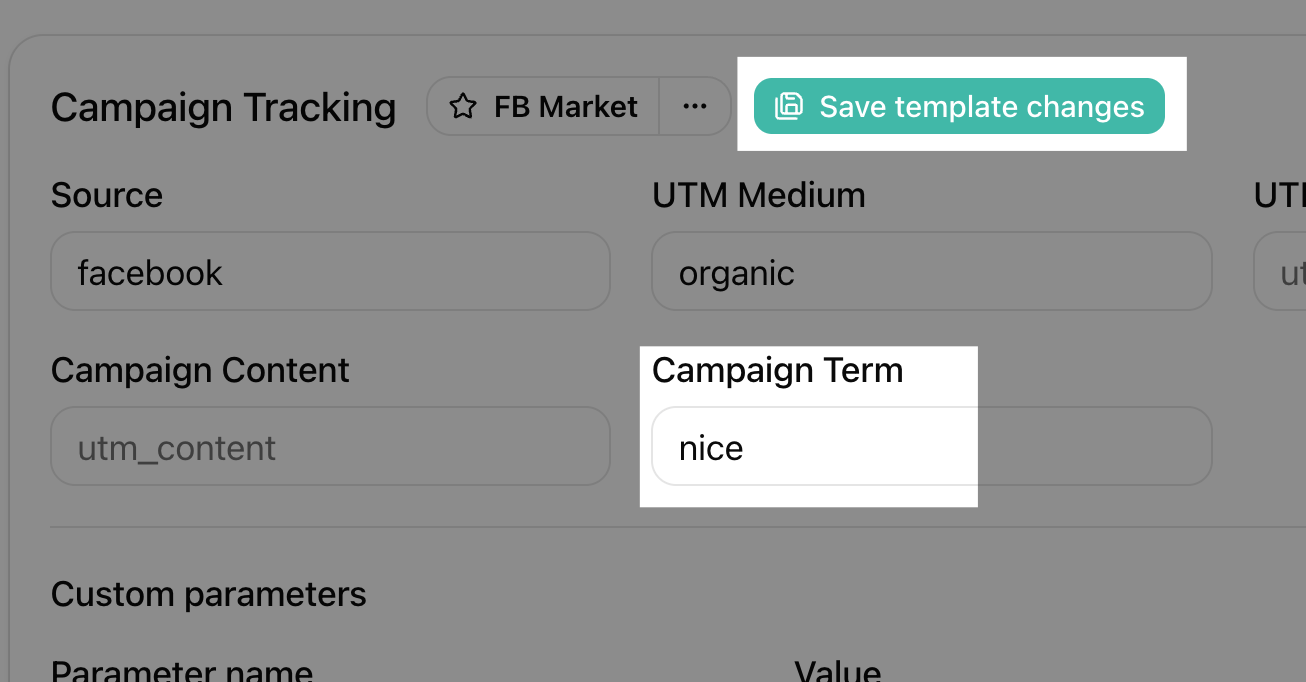
When saving changes to existing template you'll need to confirm the change, as you will see how many other short links this will affect.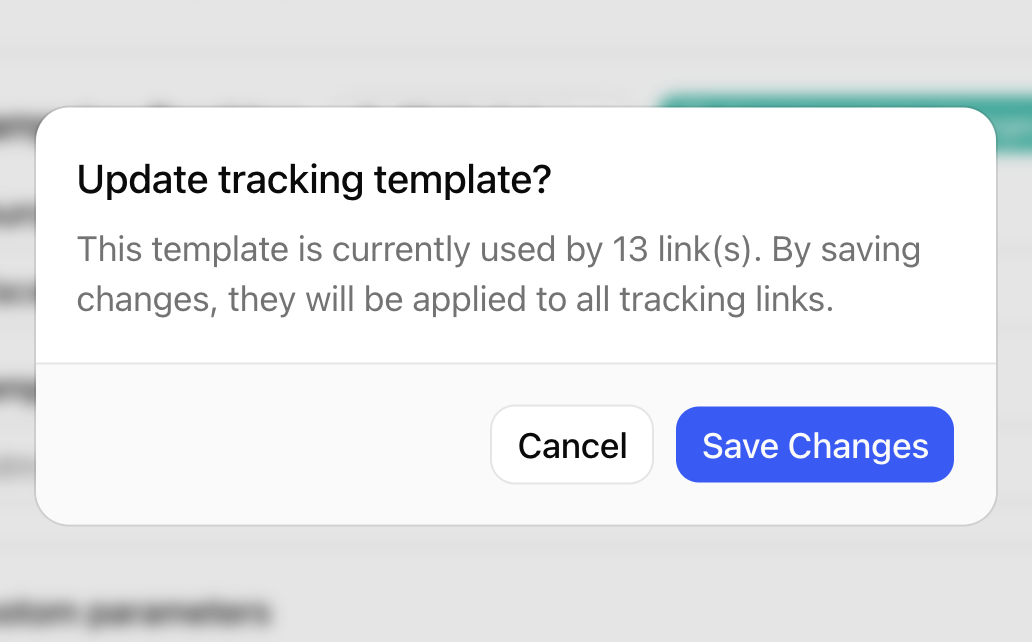
Select existing Tracking template
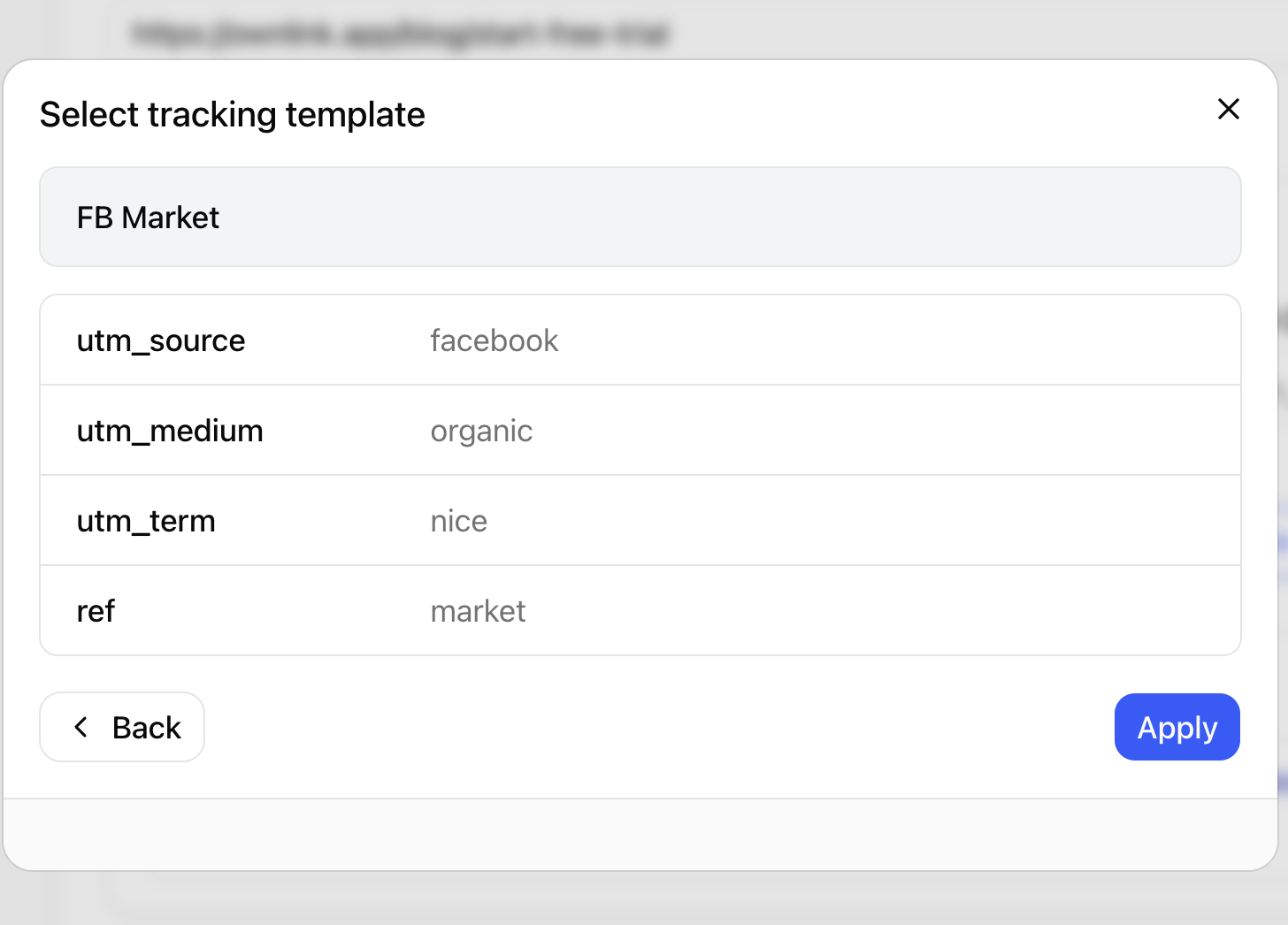
To apply existing campaign tracking template to a link, click "Load template" and select one of the previously saved options.
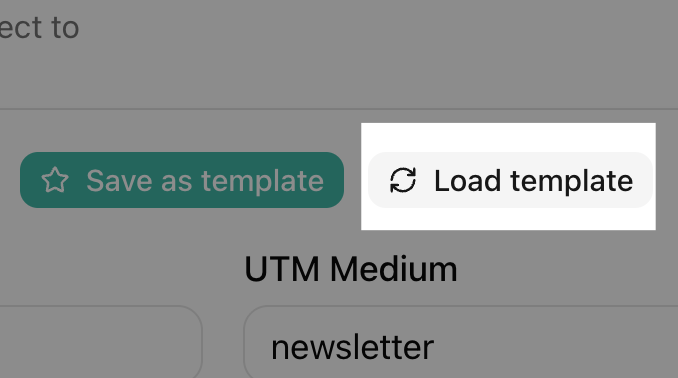
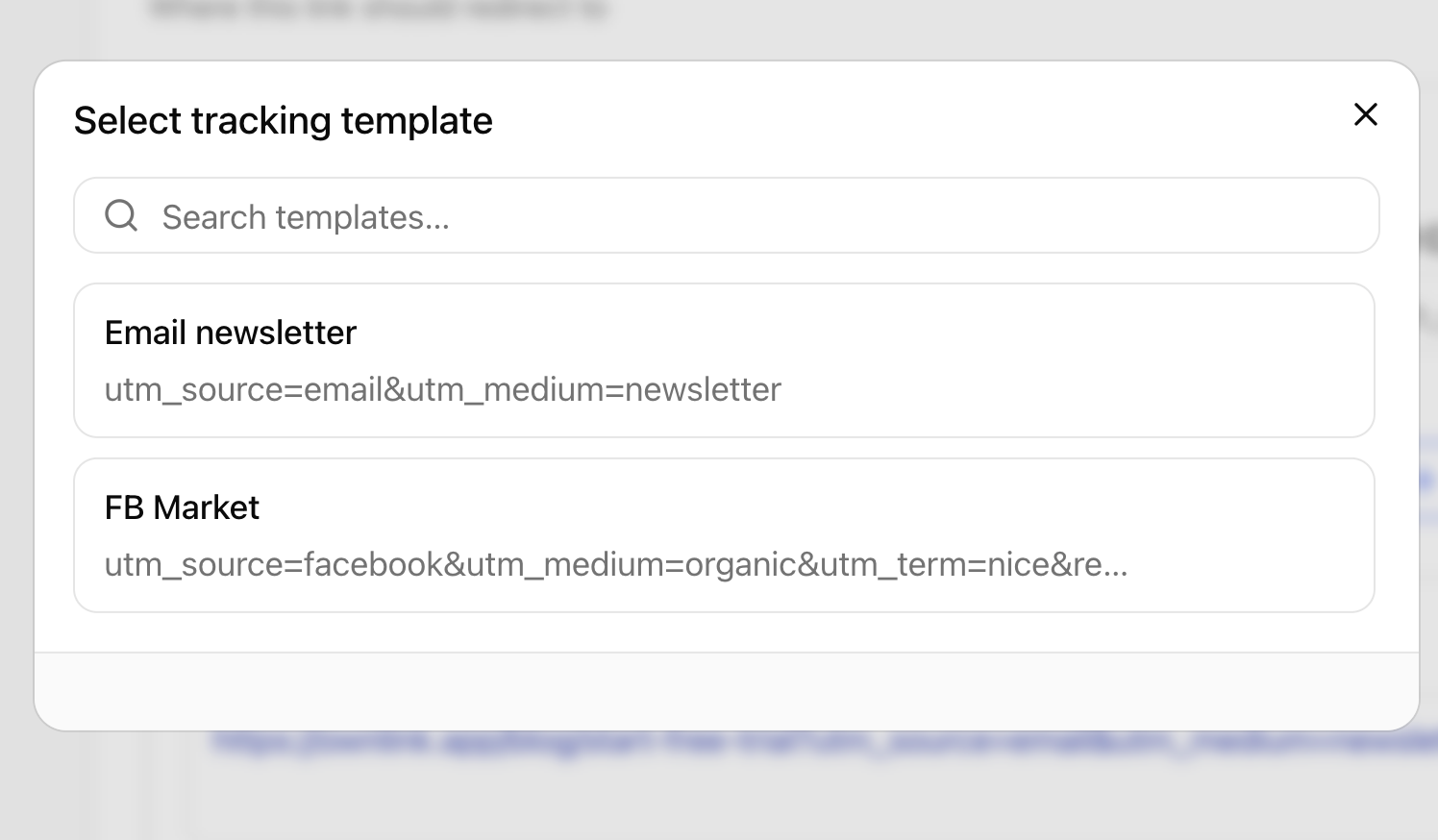
After selection you can review each parameter one by one before they are applied to your link.
If you want to replace existing template, from template menu pick "Replace template" to see all other template options.
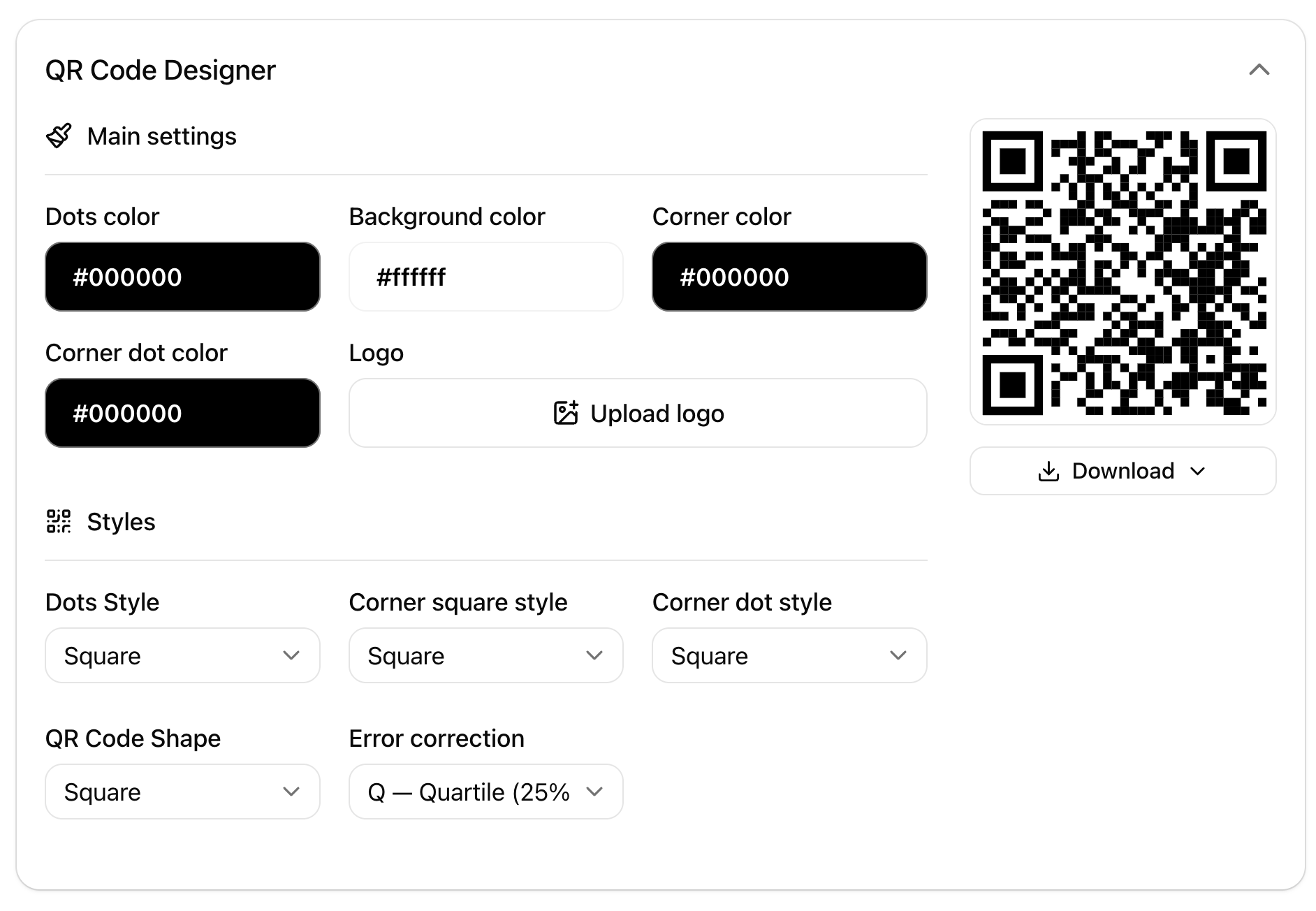
QR Code Designer
Here you can create branded QR code for your link. It is possible to pick styles, adjust colors, add logo,and download your QR code in SVG, PNG, JPG formats. If you need further help, refer to - QR Code Designer guide.
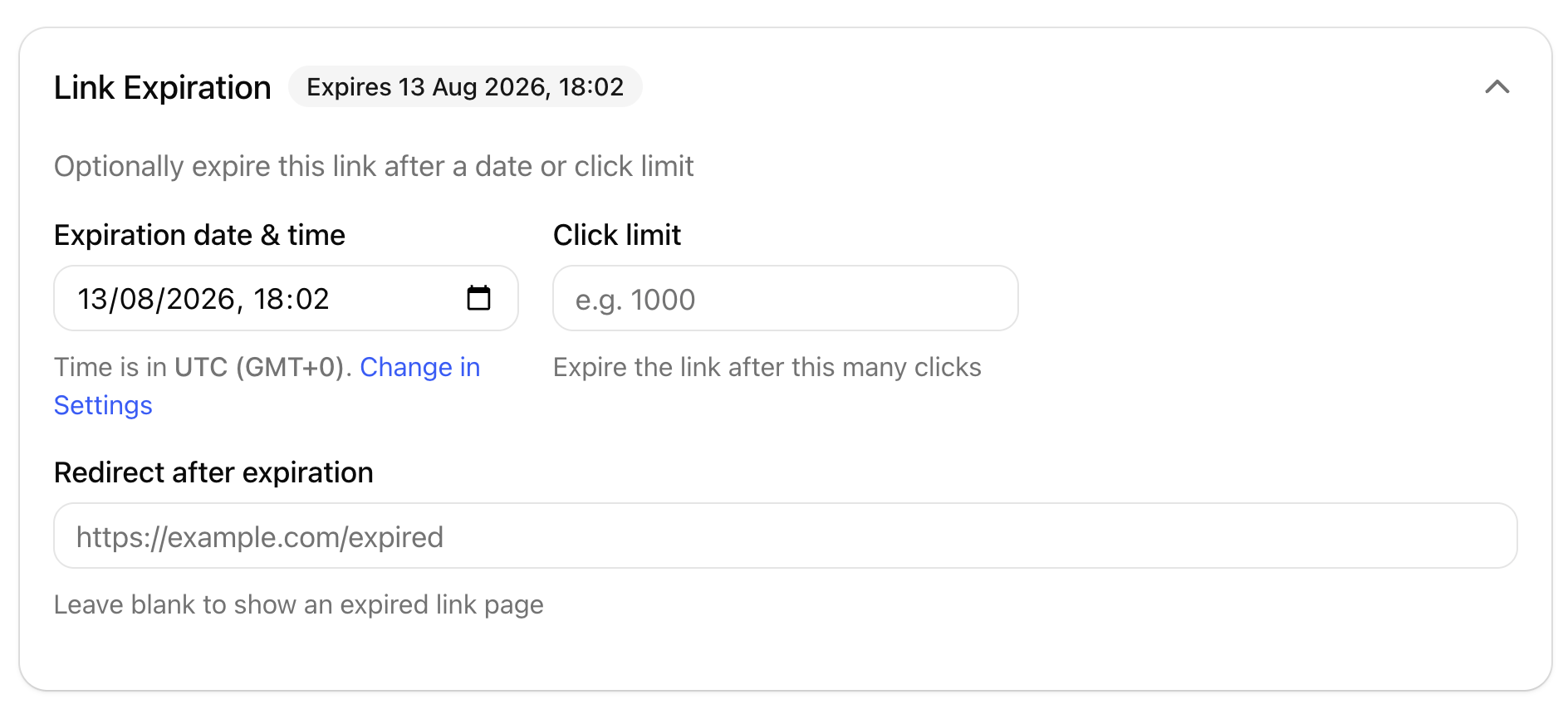
Link Expiration settings
Settings in this section allow you to control expiration time and limit amount of total clicks, if necessary.
You can also set a destination page where visitors will be redirected after link has expired ( by default it will lead to 404 ).
Optional settings
Currently it allows you to add optional link description and redirect type - 301 or 302.